How to Create a Digital Business Card QR Code (vCard)
A vCard QR code saves name, phone, and email to the phone. A profile link only opens a page. This guide shows the difference.
By James Dom · ·
A vCard QR code stores the contact in the image, using the vCard text format in RFC 6350. A scan can offer to save the name, phone, and email. It does not open your website unless you also put a URL in the card. Type the fields on the vCard generator. This page is the explanation, not a second form.
A sample vCard
This is an example, not a real person. The vCard generator asks for first name, last name, phone, and email, then stores text like this. You do not paste the block in yourself. The form has no company or website field. Put a website on a normal link QR if the scan should open a page.
- BEGIN:VCARD
- VERSION:3.0
- N:Cruz;Ana;;;
- FN:Ana Cruz
- TEL:+639171234567
- EMAIL:ana@example.com
- END:VCARD
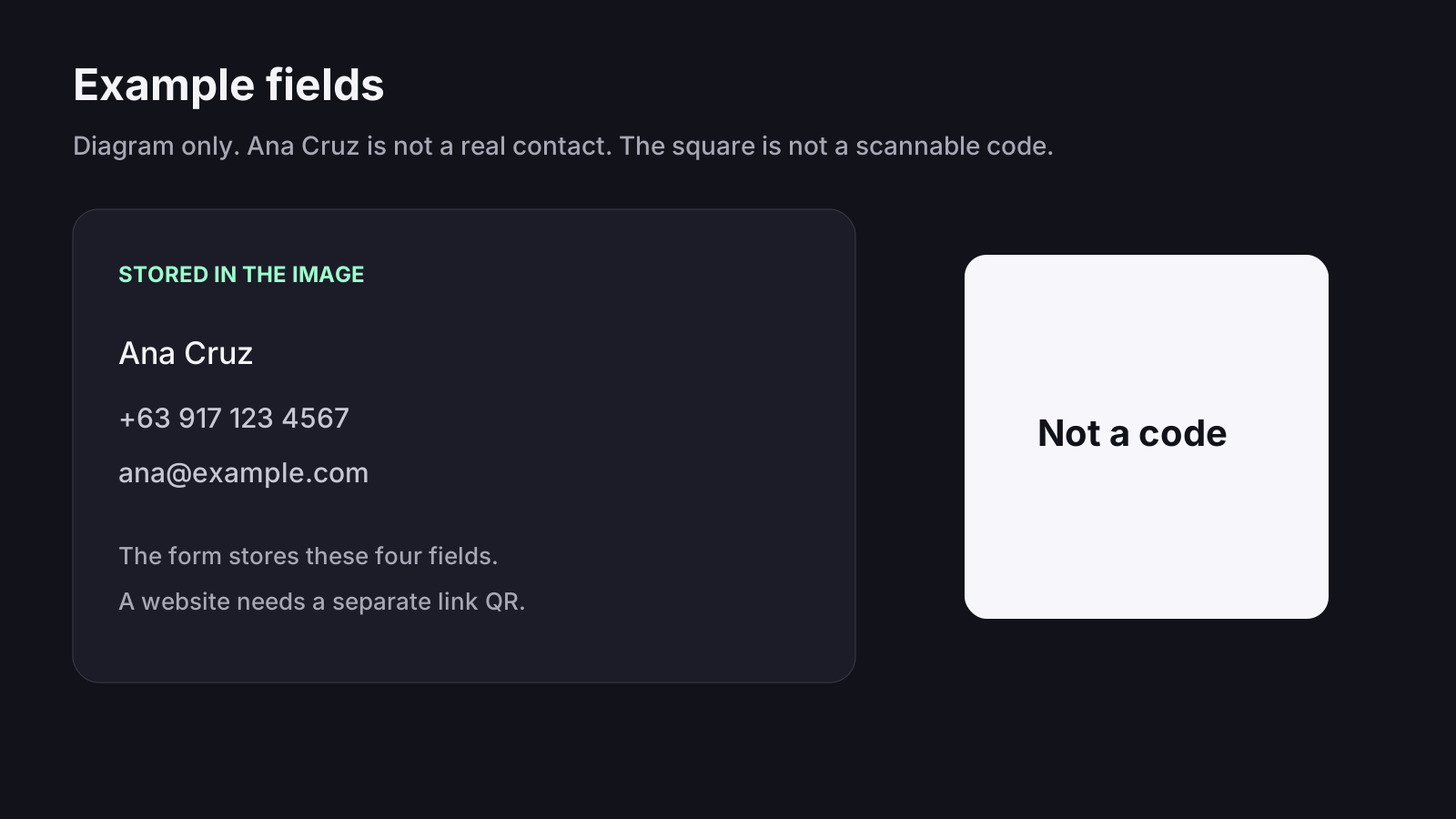
More fields make a denser code
Every extra line is more modules. A name and a phone number stay easy to scan at card size. A long address, a note, and a logo together can fail on a small print. Keep the essentials, leave a blank margin, and test. Contrast notes are in the GS1 guidance.
vCard, a profile link, or Dynamic QR
Use a vCard when the person should save a contact with no website. Use a social QR or a normal link when the scan should open a page you can edit. Use Dynamic QR when that page address may change after the cards are printed. A static vCard cannot be edited later.
Where to put it
- Business cards: one code, the name printed beside it, and space around the square.
- Email signatures: a small PNG is enough on screen. SVG is the file to send a printer.
- Badges and booths: put the code where someone can hold a phone close, not across a crowded aisle.
- Scan the download with the scanner and on a second phone before you order a print run.
FAQ
Does the scan save the contact by itself?
The phone usually asks before it saves. iOS and Android do not all use the same prompt. Test the file on a second phone.
Can I change the phone number after printing?
Not on a static vCard. The number is inside the image. Print a new code, or put a profile page behind a Dynamic QR if the details will change.
Will a logo make the code more reliable?
No. Error correction stays at level M. A large logo covers modules. Keep it small and scan the file before you print.
Ready to create your own QR code?
Try qrfyy free