QR Code Asset Tags: Track Equipment the Easy Way
Use QR code asset tags to track laptops, tools and equipment. Link each tag to records, manuals or repair forms. Setup steps, label tips and free tools.
By James Dom · ·
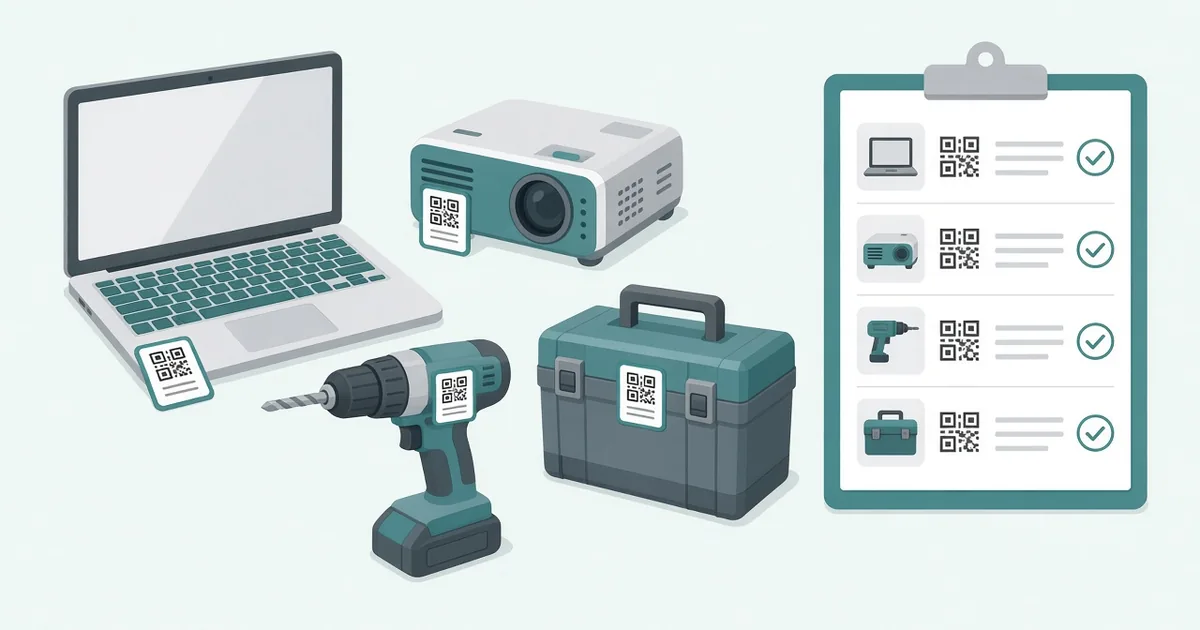
Every organization has stuff to keep track of: laptops, projectors, tools, chairs, lab equipment, cameras, vehicles. Most start with a spreadsheet and a few stickers, and within a year nobody is sure which laptop is which or when the projector was last serviced. QR code asset tags fix this cheaply. Each item gets a label, and anyone with a phone can scan it to see what it is, who has it, and how to report a problem.
This guide covers how to plan asset tags, what to link each code to, how to print durable labels, and how to keep the system working.
What is a QR code asset tag?
An asset tag is a label with a unique ID attached to equipment. A QR code asset tag adds a scannable code that opens information about that item: a record in a spreadsheet, an asset management system, a manual, or a repair request form.
QR codes work well because:
- Any smartphone camera can scan them, no special scanner needed.
- They hold a URL, so each tag can open a different page.
- They can be printed cheaply on a regular label printer.
- They still work when a little dirty or scratched, thanks to error correction.
What each tag can link to
Choose what's most useful for the people who scan:
- Asset record. Name, ID, serial number, purchase date, location, assigned person.
- Repair or issue form. A Google Form QR code with the asset ID filled in.
- User manual or safety sheet. A PDF QR code to the manual.
- Check-out form. For shared equipment like cameras or projectors.
- Maintenance log. When the item was last serviced and what was done.
Many teams link to a single page per asset that shows the record and has buttons for "Report a problem" and "Check out".
Step 1: Plan your asset IDs
Before printing anything, decide on an ID format. Keep it short and readable:
- `IT-0001` for IT equipment
- `TL-0001` for tools
- `AV-0001` for audio/visual
- `FN-0001` for furniture
Print the ID as text next to the QR code, so people can read it even without scanning.
Step 2: Build your asset list
Start a spreadsheet with columns for:
- Asset ID
- Name and description
- Serial number
- Purchase date and price
- Location
- Assigned to
- Status (in use, in repair, retired)
- Link (the URL the QR code will open)
If you use an asset management tool, it will usually generate a unique URL per asset for you. If not, a simple option is a shared spreadsheet with one row per asset, or a page per asset in a shared document tool.
Step 3: Generate the codes in bulk
Typing hundreds of codes by hand is slow and error-prone. Use a bulk QR code generator with your spreadsheet: upload the list of IDs and URLs and download all codes at once. Our bulk QR code generator guide walks through the process.
Use dynamic QR codes if you might change systems later. You can redirect each tag to a new URL without relabeling equipment.
Step 4: Choose durable labels
Asset tags need to survive handling, cleaning and sometimes heat or chemicals:
- Polyester labels for laptops and office equipment.
- Laminated labels for tools and shared items.
- Anodized aluminum or metal tags for heavy equipment, vehicles and outdoor assets.
- Tamper-evident labels for high-value items.
Use black codes on white or silver backgrounds for the best scanning.
Step 5: Size and place the tags
- A 2 to 2.5 cm code is enough for close-up scanning on most items.
- Place the tag on a flat, visible surface that won't get rubbed off, such as the underside of a laptop or the side of a tool case.
- Avoid curved surfaces and spots that get hot.
- Keep placement consistent across similar items, so people know where to look.
Our QR code size for printing guide has more detail.
Step 6: Train people to use the tags
Tell staff what scanning does: "Scan the tag to report a problem or check out the equipment." Put a small line on the label itself: "Scan to report an issue". Make the repair form short so people actually use it.
Use cases
Schools: Track laptops and tablets loaned to students. Students scan to report damage. See our QR codes for teachers guide.
Offices: IT tracks laptops, monitors and phones, and staff scan to request help.
Construction and workshops: Tools are checked in and out, and the code opens the safety sheet.
Labs and hospitals: Equipment shows calibration dates and manuals.
Event companies: Speakers, lights and cables are tracked between events.
Rental businesses: Customers scan to see instructions or report problems.
Keep records up to date
Asset tags only work if the records behind them are accurate. Set a routine:
- Update records when items move or are reassigned.
- Run a quick audit every quarter: scan a sample of items and check the records.
- Mark retired items as retired rather than deleting them.
You can track QR code scans to see which items are scanned most, which often means they need attention.
Security tips
- Don't put sensitive information directly on the public page.
- If the asset record needs a login, show only basic info and a repair form publicly.
- Use tamper-evident labels on high-value items.
- Review who can edit the asset list.
Common mistakes
- No readable ID next to the code.
- Labels that peel or fade.
- Codes linking to a spreadsheet that requires a login nobody has.
- Repair forms that are too long.
- Records that are never updated.
Start with a pilot
Rather than labeling everything at once, start with one category, such as laptops or shared AV equipment. Tag 20 to 50 items, run it for a month, and fix what doesn't work: label placement, form questions, page layout. Once the process is smooth, expand to other categories. A small pilot also helps you estimate how many labels you need and which material lasts best in your environment.
A sample tag layout
A practical asset label fits in about 5 by 2.5 cm: the QR code on the left, and on the right your organization name, the asset ID in bold, and a short line such as "Scan to report a problem". If there is space, add a phone number or email for urgent issues. Keep the layout identical across all tags so staff recognize it instantly.
FAQ
What is a QR code asset tag?
A label on equipment with a unique ID and a QR code that opens information or forms about that item.
Can I make asset tags for free?
Yes. A spreadsheet, free QR generator and a label printer are enough to start.
What should an asset tag QR code link to?
An asset record, a repair form, a manual or a check-out form.
How do I create hundreds of asset tags?
Use a bulk QR code generator with a spreadsheet of IDs and URLs.
What label material lasts longest?
Polyester or metal tags last longest, especially for tools and outdoor equipment.
Ready to create your own QR code?
Try qrfyy free