QR Codes for Teachers: 12 Practical Classroom Ideas (Free)
Simple, free ways teachers can use QR codes for attendance, worksheets, reading corners, parent communication, and more. No signup, no watermark.
By James Dom · ·
Teachers don't need another tech tool that takes a weekend to learn. What they need are small shortcuts: fewer URLs written on the board, fewer "Ma'am, what's the link again?", fewer copies printed for a resource that lives online anyway.
That's where QR codes fit. A QR code is just a printable shortcut to a link, a file, a form, or a block of text. Make one in a minute, print it on a worksheet or tape it to a wall, and students scan it with a phone or tablet. This guide covers practical ways to use them in class, how to make them for free, and a few habits that prevent the usual headaches.
Why QR codes work well in classrooms
- They remove typing errors. Long Google Drive or Google Forms links are a nightmare to copy from a projector. A QR code gets every student to the same page.
- They link paper to digital. A printed module can point to a video, an audio clip, or an answer key without reprinting anything.
- They're free to make. With a static code from the qrfyy QR code generator, there's no signup, no watermark, and the code doesn't expire because the data is stored in the image itself.
- They work offline for text. A QR code can hold plain text, not only links, such as a riddle, a vocabulary word, or a clue, that phones read without internet.
12 classroom ideas for QR codes
1. Attendance and exit tickets with a form
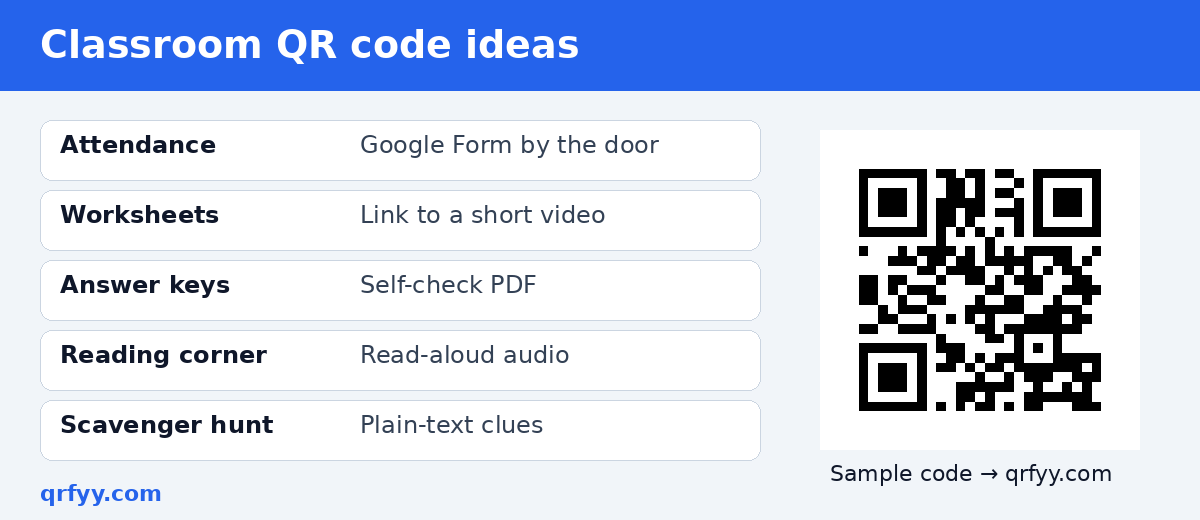
Create a Google Form for attendance or an exit ticket ("One thing I learned today…"), (Google's help page shows how to share a form's link), then turn the form link into a QR code using the Google Form QR code tool. Post it by the door. Students scan on the way in or out, and responses land in a spreadsheet you can sort later.
2. Worksheets linked to video explanations
Add a small QR code beside a tricky problem on a worksheet that links to a short explanation video. Students who get stuck can watch it; students who don't need it can skip it. See our guide on making a video QR code.
3. Self-checking answer keys
Put a QR code at the bottom of a practice sheet that opens the answer key (a PDF in Drive works well). Learners check their own work after finishing. Use the PDF QR code generator or the Google Drive QR code page.
4. Reading corner audiobooks
Stick a QR code inside the cover of a classroom book that links to a read-aloud recording. This is great for early readers and for language practice. Our audio QR code guide walks through it.
5. Scavenger hunts
Hide QR codes around the room or school grounds. Each one holds a plain-text clue or question that leads to the next location. Because plain-text codes don't need a link, they work even where WiFi is patchy.
6. Classroom WiFi access
If your school allows students or visiting parents onto a guest network, a WiFi QR code lets them join without you spelling out a password ten times.
7. Parent communication sheets
Print a QR code on your welcome letter or on the classroom door that links to your class group chat invite, a class page, or a contact card. For contact details, the vCard QR code generator stores a name, phone, and email. It has no school field.
8. Bulletin board "learn more" links
Turn a static bulletin board into something interactive. Each poster about a historical figure, an ecosystem, or a math concept gets a QR code linking to a deeper resource.
9. Student portfolios and project showcases
At a science fair or class exhibit, each project can display a QR code linking to the student's slides, video, or write-up. Visitors scan to see more than fits on a trifold board.
10. Labeling learning stations
At station rotation, each table gets a QR code with that station's instructions or materials. You spend less time repeating directions.
11. Feedback from students
A short anonymous survey linked through a QR code ("How clear was today's lesson?") gives you honest input. Our feedback QR code post has more ideas.
12. Calendar reminders for events
For a PTA meeting, recognition day, or a field trip, a QR code can add the event to a parent's calendar. Use the calendar event QR code page.
How to make a classroom QR code in under a minute
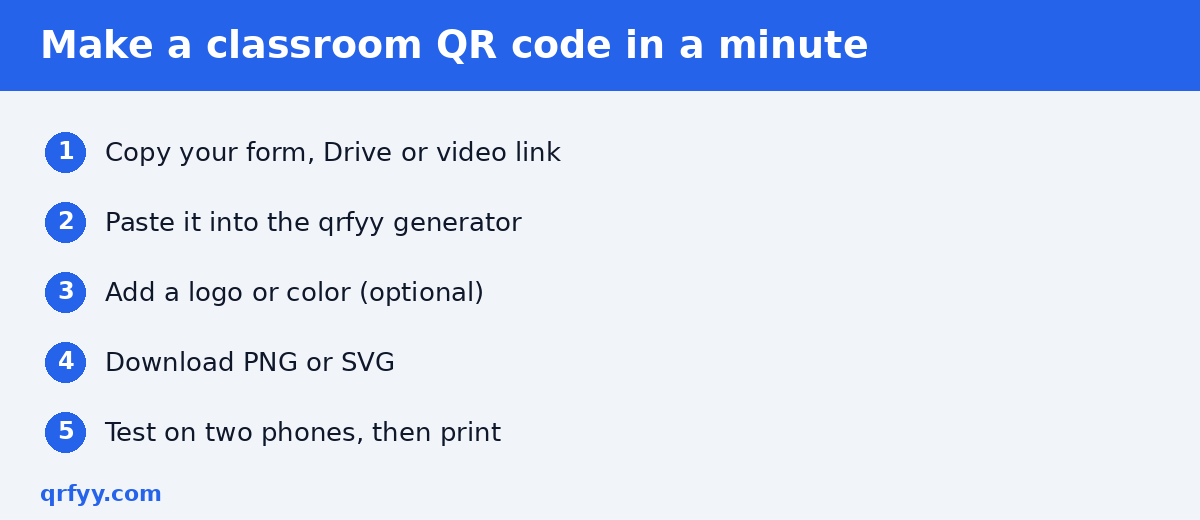
- Copy the link you want to share (a form, Drive file, video, or website).
- Open the qrfyy generator and paste it in. For text clues, choose the Text option instead.
- Optionally add your school logo or a color. Our guide on custom QR codes with a logo and colors explains how to keep it scannable.
- Download it. PNG is fine for slides and documents; SVG is best for large posters since it stays sharp at any size.
- Test it with two different phones before printing a class set.
Making a whole class set at once
If every student needs their own code (say, a link to their personal portfolio folder), you don't have to make 40 codes one by one. The bulk QR code generator creates up to 50 static PNG files in your browser from a list with one link per line.
Static or dynamic: which should teachers use?
Most classroom codes should be static. They're free, have no count cap, never expire, and aren't tracked. That's a good default when students are scanning.
A dynamic code is useful when you'll reuse a printed material but expect the link to change. For example, a door poster that should point to "this week's homework" can be edited each week without reprinting. qrfyy's dynamic QR codes are free (up to 20 per owner key) and record basic scan details such as time and device category; full IP addresses aren't stored and scan details are kept for 90 days. If you're working with minors, think about whether you need that data at all; often a static code is the simpler choice. Read static vs dynamic QR codes for a deeper comparison.
Tips to avoid classroom QR code headaches
- Print big enough. A code on a wall across the room needs to be much larger than one on a handout. Our QR code size guide for printing has practical numbers.
- Check sharing settings first. The most common classroom failure isn't the QR code. It's a Google Drive file set to "Restricted." Open the link in a private browser window to confirm students can access it, and review Google Drive's sharing settings if they can't.
- Label every code. "Scan for the answer key" beats a mystery square.
- Have a backup. Not every learner has a device. Write a short link under the code or pair students up.
- Keep it high-contrast. Dark code, light background, and a clear margin around it.
FAQ
Do students need an app to scan QR codes?
Usually not. Most modern iPhone and Android cameras scan QR codes directly. Laptops can use a browser scanner like the qrfyy scanner.
Will my classroom QR codes stop working after the school year?
Static codes made with qrfyy don't expire, because the data is inside the image. A code only "breaks" if the link it points to is deleted or made private. Learn more in do QR codes expire?
Can I make QR codes without an account?
Yes. Static codes on qrfyy need no signup. Dynamic codes use an owner key rather than an account.
Is it free to print QR codes on handouts?
Yes. qrfyy has no paid plan and adds no watermark, so you can print codes on as many worksheets as you like.
Can a QR code hold a question without the internet?
Yes. Choose the Text type and type the question or clue. The phone shows the text without needing a connection. Try it in your next lesson. Make a free classroom QR code with the qrfyy generator: no signup, no watermark, PNG/SVG/PDF/EPS downloads.
Ready to create your own QR code?
Try qrfyy free