Why Is My QR Code Not Scanning? 9 Causes and Quick Fixes
QR code won't scan? Work through this troubleshooting checklist: size, quiet zone, contrast, glare, logos, inverted colors, dense data and broken links, with a fix for each.
By James Dom · ·
You printed the menu, the flyer or the counter sign, someone points their phone at it, and nothing happens. Or the camera finds the code but opens an error page. Frustrating, but almost always fixable.
QR codes fail for a short list of reasons, and you can usually find the cause in a couple of minutes. This guide works through them in the order worth checking, with a fix for each. If you want the prevention version for designers, see our list of 7 QR code mistakes that stop a scan.
First: is it the code, the phone, or the link?
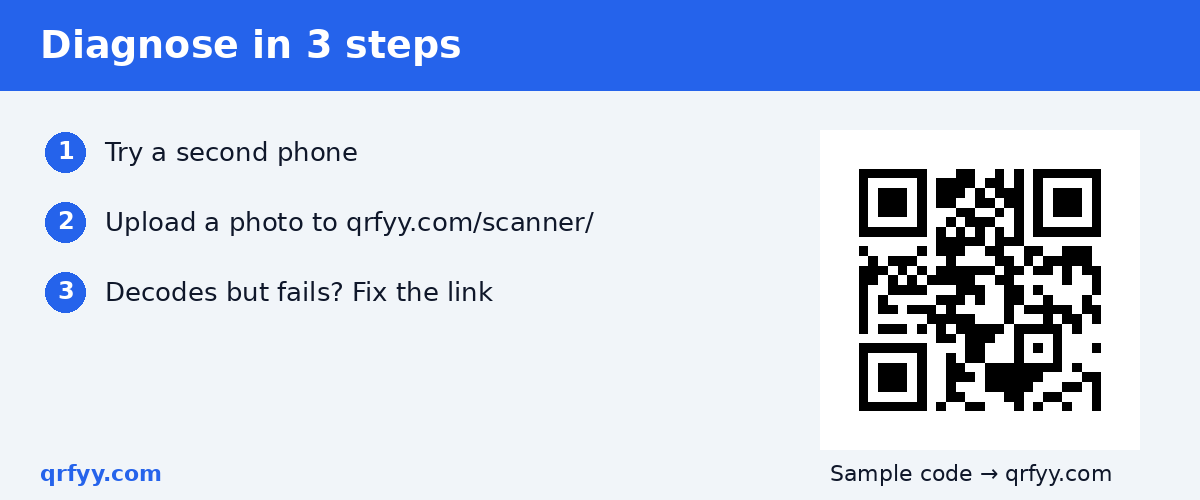
Before changing anything, narrow it down:
- Try a second phone. If one phone reads it and another doesn't, the code is probably borderline (small, low contrast, glare) rather than broken.
- Try a different decoder. Take a photo of the code and upload it to the qrfyy scanner. If it decodes there, the pattern is fine and the problem is distance, lighting or the camera.
- Check what it decoded. If the scanner shows text but the page won't open, the code works and the link is the problem (cause 9 below).
The 9 most common causes
1. The code is too small for the distance
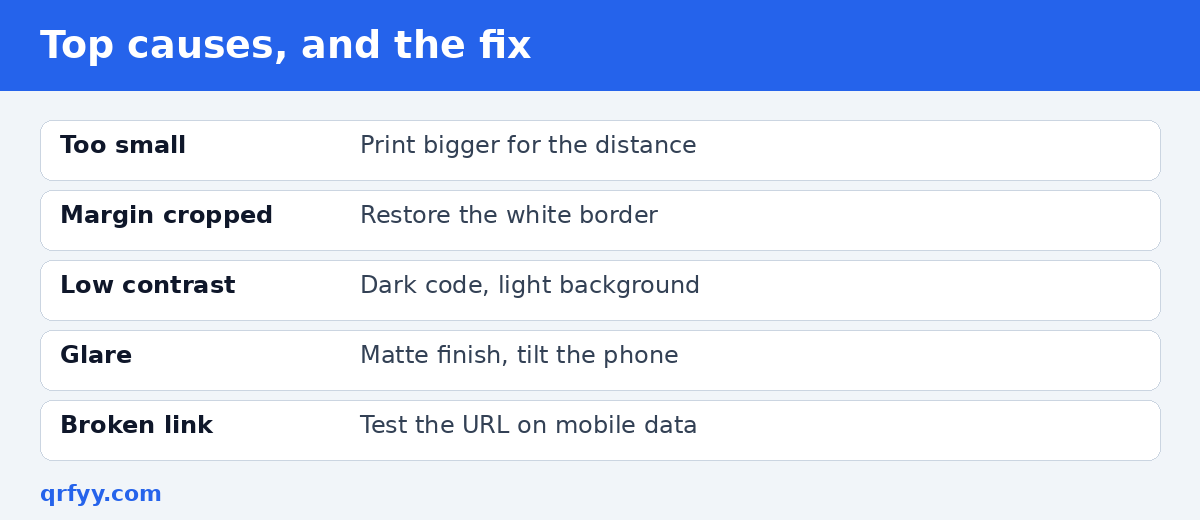
A camera needs each little square (module) to cover enough of its sensor. A code that scans fine from a hand's length fails from across a room. A common rule of thumb is to make the code at least one-tenth of the scanning distance wide, then test it. Our QR code size guide for printing is that rule of thumb, not a qrfyy lab test.
Fix: reprint larger, or move the code closer to where people stand.
2. The quiet zone was cropped
The blank border around the code isn't decoration. DENSO WAVE, which invented the QR code, specifies a four-module-wide margin on all sides. Designers often trim it to save space, or place the code right against a photo or text.
Fix: restore the white margin. On a screenshot, crop wider.
3. Low contrast
Cameras read brightness, not color. A mid-grey on white, pastel on cream, or two colors of similar brightness can look identical to a decoder, even if they look different to you.
Fix: use a dark code on a light background. See how to change QR code color safely.
4. Inverted colors (light code on dark background)
Some phone cameras and apps don't read inverted codes. Dark mode in email clients and apps can also invert images automatically.
Fix: keep dark modules on a light background, especially for print.
5. Glare and reflections
Laminated table tents, glossy flyers, windows and phone screens can throw a bright patch across part of the code. Error correction doesn't help much here, because a large area is unreadable at once.
Fix: use matte finishes where possible, tilt the phone, or move the sign out of direct light.
6. The logo is too big, or covers a corner square
A logo works because of error correction, which can rebuild part of the code. DENSO WAVE's error correction overview explains the levels. But a logo that is too big, or one that covers one of the three large corner squares, breaks the code.
Fix: shrink the logo, keep it centered, and never cover the corner squares. qrfyy stays at error correction level M and does not raise it when you add a logo.
7. Too much data (a very dense code)
The more data you encode, the more modules the code needs. QR codes range from Version 1 (21 × 21 modules) to Version 40 (177 × 177 modules), and denser codes have smaller modules at the same printed size. A long URL with tracking parameters creates a busy code that's harder to scan.
Fix: shorten the link, or use a dynamic QR code, which stores a short redirect instead of the full address.
8. Blur from enlarging a small image
Stretching a small PNG makes the module edges blurry. It may look acceptable on screen but fail in print.
Fix: regenerate the code at the right size, or download SVG, which stays sharp at any size. Read how to make a QR code bigger without blur.
9. The code works, but the link doesn't
If the camera recognizes the code but the page fails, the problem is the destination: a typo, a deleted page, a private Google Drive file, or an expired trial on a dynamic code from another service.
Fix: open the decoded link in a private browser window on mobile data. If you can't change the link, see what to do when a QR code goes to the wrong link.
When the problem is on the scanning side
- The camera isn't looking for codes. Some Android phones need QR scanning switched on in camera settings, or need Google Lens.
- Too close or too far. Move back until the whole code, with its margin, fits comfortably in the frame.
- Low light or a shaky hand. Add light and hold still for a second.
- The code is on your own screen. Take a screenshot and upload it instead. See how to scan a QR code from a screenshot.
Quick troubleshooting table
| Symptom | Likely cause | Fix |
|---|---|---|
| Camera never reacts | Too small, cropped margin, low contrast | Bigger, add margin, darken |
| Works on one phone only | Borderline size or glare | Enlarge, matte finish |
| Works on screen, fails in print | Blurry upscale, ink spread | Regenerate, use SVG |
| Opens an error page | Broken destination | Fix the link or redirect |
| Fails with a logo, works without | Logo too large | Shrink the logo |
How to prevent it next time
- Generate a fresh code at the size you need, ideally as SVG.
- Keep it dark on light with a clear margin.
- Keep logos modest.
- Print one proof at full size and scan it from the real distance with two different phones.
- Open the link on mobile data before the full print run.
You can make a fresh, print-ready code on the free qrfyy generator: no signup, no watermark, PNG/SVG/PDF/EPS.
FAQ
Why does my QR code scan on one phone but not another?
Cameras and decoders differ. A borderline code (small, low contrast, slight glare) may work on a newer phone and fail on an older one. Make it bigger and higher-contrast.
Can a damaged QR code still scan?
Sometimes. Error correction can recover part of a damaged code, but not a torn corner square or a large missing area. Reprint it.
Why does my QR code scan but say the page can't be found?
The code is fine; the link isn't. Check the URL for typos and make sure the page or file is public.
Do QR codes stop working over time?
Static codes don't expire, because the data is in the image. Dynamic codes from some services stop if a subscription or trial ends.
Does a logo make a QR code harder to scan?
A small centered logo is usually fine. A large one, or one covering a corner square, can stop the scan.
Ready to create your own QR code?
Try qrfyy free