How to Scan a QR Code from a Screenshot or Image (Free, No App)
Got a QR code in a screenshot, photo, or chat? Here's how to scan it from an image on iPhone, Android, and desktop, plus what to do when it won't read.
By James Dom · ·
Most QR code advice assumes the code is printed on a wall and your phone is in your hand. Real life is messier. Someone sends you a QR code in Messenger. A WiFi code sits in a PDF on your laptop. You screenshot a payment link or an event ticket and only realize later that you can't point your phone's camera at your own phone's screen.
The good news: you don't need a second device. A QR code in an image file holds exactly the same data as one on paper, and you can decode it straight from the picture. This guide covers the fastest ways to do that on any device, and how to fix the images that refuse to scan.
The quickest method: upload the image to a browser scanner
If you want one method that works the same on iPhone, Android, Windows, Mac, and Chromebook, use a web-based scanner that accepts uploads.
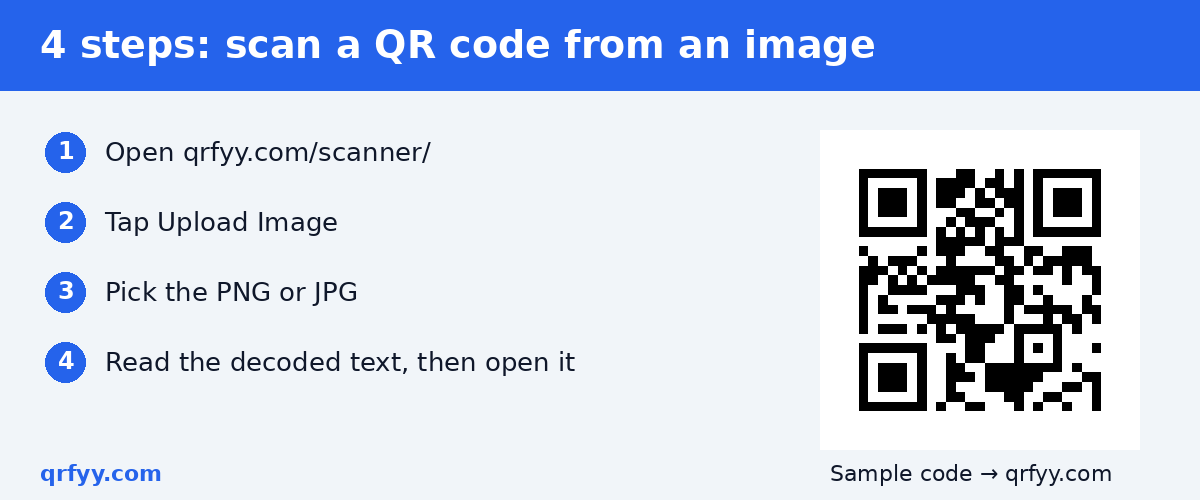
- Open the qrfyy QR code scanner.
- Choose Upload Image.
- Pick the screenshot or photo (PNG or JPG) from your gallery or files.
- The decoded text appears on the page. If it's a link, you can open it from there.
There's no app to install and no signup. One detail worth knowing if you care about privacy: the qrfyy scanner decodes the image inside your browser. The picture is not sent to a qrfyy server, so a screenshot of a WiFi password or a private link stays on your device.
The scanner reads the same kinds of codes most people come across: web links, WiFi details, contact cards (vCards), and plain text. It shows you what's inside; it doesn't connect to WiFi, save a contact, or pay anyone on your behalf. You decide what to do with the result.
How to scan a QR code from a screenshot on iPhone
Apple builds QR detection into its photo tools, so you often don't need anything extra.
Using the Photos app
- Open the screenshot in Photos.
- Look for the Live Text / visual lookup indicator, or press and hold on the QR code.
- If iOS recognizes the code, it offers to open the link.
How this looks depends on your iOS version, and it doesn't always trigger, especially on small or busy codes. If nothing happens after a press-and-hold, don't keep poking at it.
Fallback: browser upload
Open Safari, go to the qrfyy scanner, tap Upload Image, and choose Photo Library. This works regardless of iOS version.
How to scan a QR code from an image on Android
Android phones vary a lot by brand, but most give you at least one built-in route.
Google Lens and gallery apps
- In Google Photos, open the image and tap the Lens button. Lens usually detects the QR code and shows the link or text.
- Many Samsung, Xiaomi, OPPO, and vivo gallery apps have their own scan or "recognize" button when you view an image.
- Some camera apps include a gallery icon inside QR mode so you can pick an existing picture.
Fallback: browser upload
If your phone's tools don't find the code, open Chrome, visit the qrfyy scanner, and upload the image. Same result, no app.
How to scan a QR code on a laptop or desktop
This is where people get stuck most often: the code is on your computer screen, and your phone is the only "scanner" you own. You have two options.
- Point your phone at the monitor. This works surprisingly well if the code is reasonably large and the screen brightness is up. Moiré patterns and glare can get in the way, though.
- Decode it on the computer itself. Take a screenshot (Windows: Win + Shift + S; Mac: Cmd + Shift + 4), save it, then upload it to the qrfyy scanner in any browser. If your laptop has a webcam, the scanner's camera mode works too, but upload is usually easier for something already on screen.
Why a screenshot or photo won't scan (and how to fix it)
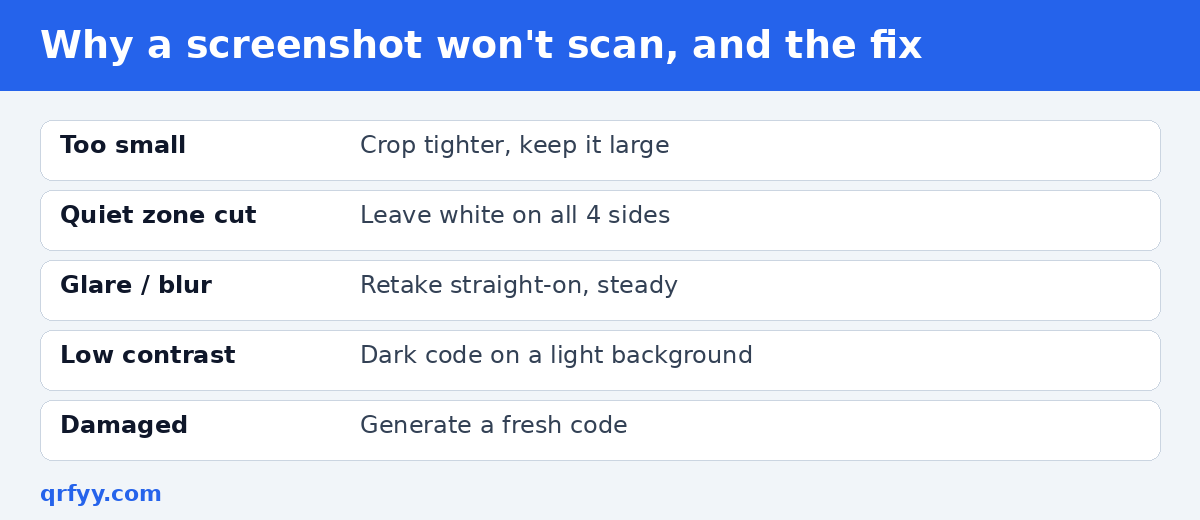
A QR code needs enough clean contrast and enough pixels for the decoder to find its three corner squares and read the grid. Most failures come down to a handful of causes.
The code is too small in the image
If you screenshotted a whole page and the code is a tiny square in the corner, the decoder may not have enough pixels to work with. Zoom in on the original, take a new screenshot where the code fills more of the frame, or crop the image tightly around the code before uploading.
The quiet zone is cut off
QR codes need a blank margin around them (the "quiet zone"); DENSO WAVE, the code's inventor, specifies a four-module-wide margin on all sides. If your crop slices right up to the edge of the pattern, add some space back. Crop a bit wider, leaving white around all four sides.
Glare, blur, or angle in a photo
Photos of printed codes on laminated cards, glossy menus, or screens often have a bright reflection across part of the pattern. Retake the photo straight-on, tilt slightly to move the reflection off the code, and hold steady. Our guide to common QR code mistakes that stop a scan covers more of these.
Low contrast or inverted colors
Very light codes on light backgrounds, or light-on-dark designs, can trip up some scanners. If you made the code, stick with dark modules on a light background. See how to change QR code color safely.
The code is damaged or partly covered
A sticker over a corner, a crease, or a tear through one of the large corner squares may make a code unreadable. Error correction can recover some lost area, as explained in our post on QR code error correction levels, but no scanner can rebuild a code that's lost too much. (DENSO WAVE's error correction overview explains how much each level can restore.) If it's your code, generate a fresh one rather than hoping it'll be repaired.
Stay safe when scanning codes from images
Codes that arrive in chats or emails deserve a little more caution than one printed on your favorite café's menu, because you can't see where they came from.
- Read the decoded link before opening it. A browser scanner that shows the text first gives you a chance to check the domain.
- Know that tampering happens. The FBI's Internet Crime Complaint Center has warned that criminals tamper with QR codes to redirect victims to malicious sites.
- Be wary of urgency. "Scan to claim your prize" or "scan to verify your account" messages are classic phishing.
- Payments deserve extra care. If someone sends you a payment QR, confirm the recipient name in your e-wallet or banking app before you approve anything.
For a fuller rundown, read are QR codes safe?
Making codes that are easy to scan from screenshots
If you're the one sharing a QR code digitally (on a website, in a newsletter, or in a chat), a few habits make life easier for the people receiving it:
- Export at a decent size. A PNG that's big enough to survive being screenshotted and compressed by messaging apps will scan more reliably. For print and anything you might resize later, use SVG from the free QR code generator.
- Keep the quiet zone. Don't place the code flush against other graphics.
- Add a short label. "Scan for WiFi" or "Scan to RSVP" tells people what they'll get, and helps them trust it.
- Share the link too. In a digital message, put the plain URL next to the QR. Someone reading on their phone can just tap it.
If you need a WiFi code for guests, use the WiFi QR code generator; for contact details, the vCard QR code generator.
FAQ
Can I scan a QR code that's on my own phone screen?
Yes. Take a screenshot, then use your phone's photo tools (Photos on iPhone, Google Lens on Android) or upload the screenshot to a browser scanner like the qrfyy scanner.
Do I need to download an app to scan a QR code from an image?
No. Most phones have a built-in option, and a browser-based scanner works on any device without installing anything.
Is my image uploaded somewhere when I use the qrfyy scanner?
No. The qrfyy scanner decodes the image in your browser, and the page doesn't send the image to a qrfyy server.
Why does my screenshot scan on one app but not another?
Different decoders handle small, blurry, or low-contrast codes differently. If one fails, crop tighter around the code (keeping a white margin) and try again, or try another method from this guide.
Can I scan a QR code from a PDF?
Yes. Take a screenshot of the page with the code, or export that page as an image, then upload it to the scanner. Ready to make your own? Create a free code with the qrfyy QR code generator: no signup, no watermark, and downloads in PNG, SVG, PDF, or EPS.
Ready to create your own QR code?
Try qrfyy free