How to Test a QR Code Before Printing: A 10-Step Checklist
Don't waste a print run. A practical checklist to test your QR code before printing: decode, devices, real size, distance, lighting, material and the link itself.
By James Dom · ·
A QR code that fails after printing is expensive: reprinted menus, wasted flyers, stickers over a tarp. Most failures could have been caught with five minutes of testing. The catch is that a code that scans perfectly on your laptop screen can still fail on paper, from a distance, under a fluorescent light, on glossy stock.
Here's a step-by-step checklist that tests the things that actually break in print. It works for menus, flyers, labels, packaging and tarps alike.
Before you start
Have your final design file (not just the QR image), two phones (ideally one iPhone and one Android, one of them older), and access to a printer.
The 10-step checklist
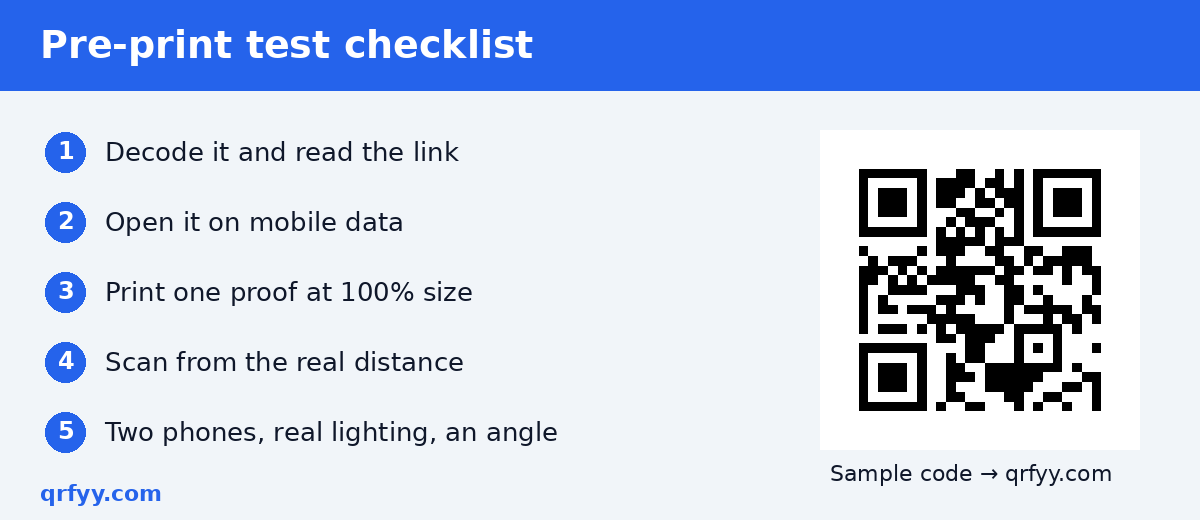
1. Decode the code and read what's inside
Upload your QR image to the qrfyy scanner and read the decoded text. Is it exactly the link you meant? Check for typos, `http` vs `https`, leftover tracking parameters, or a link to the wrong version of a page.
2. Open the link on mobile data
Open the decoded link on a phone with WiFi off, in a private browser window. This catches pages that only work on office WiFi, require a login, or are set to private. A Google Drive file set to "Restricted" is one of the most common failures.
3. Check the page on a phone
Will people be able to use the page standing up with one hand? A desktop-only PDF or a slow, cluttered page wastes the scan.
4. Scan the full design, not just the code
Export your final layout and scan it on screen. Overlapping text, a background photo touching the code, or a frame that crept into the margin can break a code that worked on its own. DENSO WAVE specifies a four-module blank margin around the code; check that nothing intrudes.
5. Print one proof at actual size
Print a single copy at 100% scale, with no "fit to page." Size is the most common failure, and only a real-size print tells you the truth. Use our QR code size guide for printing as a starting point.
6. Scan from the real distance
Hold or tape the proof where it will actually be: at a counter, on a wall, beside a door. Then scan from where people will stand, not from a few centimeters away.
7. Test with different phones
Scan with at least two phones, including an older one if possible. A code that only works on the newest phone is borderline. Make it bigger or higher contrast.
8. Test in real lighting and at an angle
Try the spot's real lighting: dim restaurant corners, fluorescent tubes, bright sunlight. Scan at a slight angle too, since people rarely stand perfectly straight-on.
9. Test on the final material if you can
Gloss lamination, vinyl, foil, curved bottles and fabric all behave differently from office paper. If your printer can give you a sample on the real material, scan that. Glossy finishes can throw glare across the code.
10. Re-test after every change
Changed the color? Added a logo? Resized it? Test again. Logos rely on error correction to cover hidden modules, as DENSO WAVE's error correction overview explains, and a larger logo can quietly tip a code over the edge. qrfyy stays at level M and does not raise it for a logo.
Printable summary
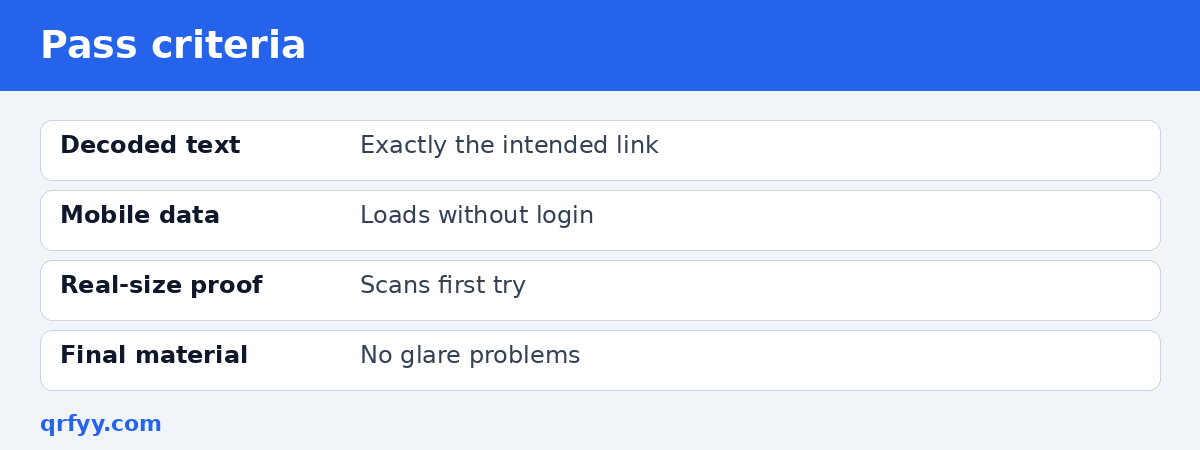
| Check | Pass if… |
|---|---|
| Decoded text | Exactly the intended link |
| Mobile data | Page loads without login |
| Full design scan | Margin clear, nothing overlapping |
| Actual-size proof | Scans first try |
| Real distance | Scans from where people stand |
| Two phones | Both scan quickly |
| Lighting and angle | Scans under real conditions |
| Final material | No glare problems |
If the test fails
Work through the likely causes: too small, cropped margin, low contrast, glare, oversized logo, or a dense code from a long link. Our guide on why a QR code is not scanning covers each one with a fix. If the code looks blurry in print, see how to make a QR code bigger without blur.
Keep a test log for big jobs
For large or recurring print jobs, keep a simple record: the file name, the decoded link, the printed size, which phones you tested with, and the date. It takes a minute, and it saves confusion later when someone asks which version went to the printer. It also makes reorders easier, because you know exactly which file passed. If several people work on the design, agree that nobody sends artwork to the printer without a fresh test after the last change.
Build in a safety net
Even with good testing, links change. If you're printing in volume (menus, parcel inserts, tarps), consider a dynamic QR code. You can update the destination later without reprinting. qrfyy dynamic codes are free (up to 20 per owner key) and show basic scan activity, so you can also confirm people are scanning after launch.
For flyers and posters, our QR codes on flyers and posters guide has more design and placement tips.
FAQ
Is scanning the code on my computer screen enough?
No. Screens are bright and sharp. Print an actual-size proof and test it where it will be used.
How many phones should I test with?
At least two, ideally an iPhone and an Android, one of them older.
Do I need to test again after changing colors or adding a logo?
Yes. Any design change can affect scanning.
What's the most common reason a printed QR code fails?
Usually size for the distance, a crowded margin, low contrast or glare. Broken links are also common, so always test the destination.
Can I test a QR code without printing it?
You can check the decoded link and page on screen, but only a printed proof tests size, material and lighting.
Ready to create your own QR code?
Try qrfyy free