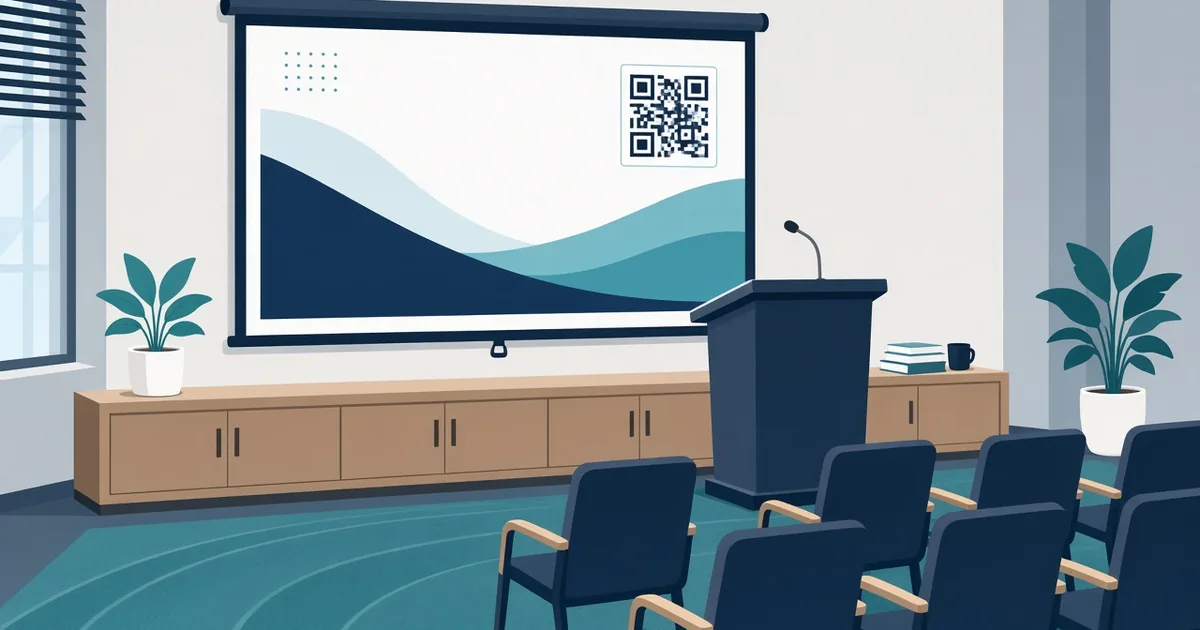
QR Code for Presentation Slides: Share Links Live
Put a QR code on your presentation slides so the audience can get the deck, resources or feedback form in one scan. Placement, size and design tips.
By James Dom · ·
At the end of almost every talk, someone raises a hand and asks, "Will you share the slides?" Then the speaker reads out a long link, half the room tries to type it, and most people give up. A QR code on your slides solves this instantly. The audience scans from their seats and gets the deck, the resources or the feedback form before they have even stood up.
This guide covers what to link, where to put the code in your deck, how big it needs to be on a projector screen, and how to make sure it actually scans in a dark room.
What your slide QR code can open
Pick a clear purpose for each code:
- Your slides. A shared Google Slides or PDF link. A Google Drive QR code or PDF QR code makes this easy.
- A resources page. Articles, tools and links you mentioned, on one page.
- A feedback form. A short Google Form QR code for ratings and questions.
- Live polls or Q&A. Link to a poll tool so the audience can vote during the talk.
- Your contact details. A vCard QR code or LinkedIn QR code so people can connect.
- A recording. After the event, the same code can point to the video using a dynamic QR code.
The best choice for most talks is a single resources page that contains the slides, links, contact details and feedback form. One code, one scan.
Where to put the code in your deck
On the title slide. People scan while waiting for you to start. Good for slides and live polls.
On the closing slide. The most common place. Leave it on screen during Q&A, so everyone has time to scan.
On a resources slide. If you mention a tool or study, put a code right there.
In the corner of every slide. A small, consistent code in the footer lets latecomers catch up. Keep it small so it doesn't distract.
How big should the code be on a slide?
Projector screens are big, but rooms are deep. A good rule: the code should take up at least one quarter of the slide height on the closing slide. For a corner code, aim for at least 10% of the slide height, and test it from the back row.
Our full QR code size for printing guide explains the distance rule, which applies to screens too: the scanning distance should be no more than about ten times the code width.
Design tips for projected QR codes
- Use a white background around the code. Dark slide themes are fine, but put the code on a white box.
- Keep high contrast. Projectors wash out colors. Black on white is safest.
- Avoid animations. A code that slides in or fades makes scanning harder.
- Add a short label. "Scan for slides and links" tells people why to scan.
- Keep the URL short. A shorter link creates a simpler code that scans faster from far away.
- Include the URL as text too. For anyone who can't scan.
If you want a branded code, add your logo using a QR code with logo, but test it on a projector first. Our QR code design best practices covers safe changes.
How to add a QR code to PowerPoint, Google Slides or Keynote
- Generate the code and download it as a PNG or SVG.
- Insert it as an image on your slide.
- Resize it with the corners only, so it stays square.
- Place it on a white area or add a white rectangle behind it.
- Add a short caption next to it.
- Present and scan it from your phone across the room.
SVG files stay sharp at any size, which is useful for large screens.
Make your talk and your slides sound natural
A QR code makes your slides easy to share, which means more people will read them later without you there to explain. If you used AI to write your speaker notes or slide text, make sure it sounds like you. Our sister site has a guide on how to humanize an AI speech that works just as well for talk scripts and presentation notes.
Use dynamic codes for repeat talks
If you give the same talk at several events, use a dynamic code. You can update the slides or resources page without changing the deck, and you can track QR code scans to see how many people scanned at each event. After the event, point the code at the recording.
Ideas for teachers, trainers and speakers
- Classroom: a code to the worksheet or homework. See our QR codes for teachers guide.
- Workshops: a code to the exercise files, so attendees don't have to download them beforehand.
- Conference talks: a code to your newsletter or booking page.
- Sales presentations: a code to the proposal, case study or calendar booking link with a calendar event QR code.
- Webinars: a code on screen for viewers watching on a laptop who want the link on their phone.
Common mistakes
- Code too small for the back of the room.
- Code on a dark or busy background.
- Slide shown for only a few seconds. Leave it up during Q&A.
- Link that requires a login. Make the slides public or "anyone with the link".
- Forgetting to test on the actual projector.
If something goes wrong, read why is my QR code not scanning.
A quick pre-talk checklist
- The link opens without a login.
- The page loads quickly on mobile data.
- The code is on a white background.
- It scans from the back row.
- There's a short caption and the URL as text.
- The closing slide stays up during Q&A.
Plan for a room with weak WiFi
Conference venues often have slow or crowded WiFi. If two hundred people scan at once, a heavy page can take a long time to load. Keep your resources page light: text and links rather than big images, and a PDF that's compressed. If you are sharing large files, link to a page where people can download them later, not a direct file that starts downloading in the room. A fast, simple page means more people actually get your slides instead of giving up and forgetting about it.
Accessibility
Not everyone can scan a QR code from their seat, especially people with low vision or people sitting far from the screen. Always show a short URL next to the code, mention it out loud, and add it to the event chat or follow-up email if there is one. If the event has printed handouts, include the code and URL there too.
FAQ
How do I put a QR code on a PowerPoint slide?
Generate the code, download it as an image, then insert it on the slide like any picture.
How big should a QR code be on a presentation slide?
On a closing slide, at least a quarter of the slide height. Test from the back of the room.
Where should I put the QR code in my presentation?
On the title slide, the closing slide, or a resources slide. Leave the closing slide up during Q&A.
Can I change the link after the talk?
Yes, with a dynamic QR code, for example to point to the recording.
Why won't my QR code scan from the projector?
Usually the code is too small, low contrast, or on a dark background. Make it bigger and put it on white.
Ready to create your own QR code?
Try qrfyy free