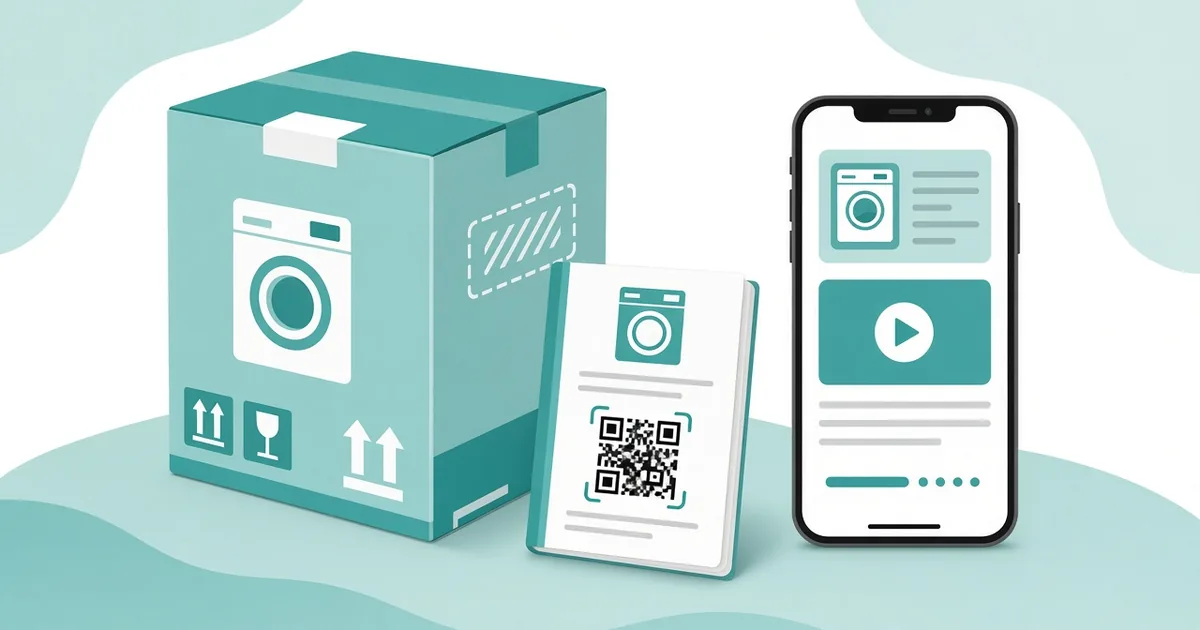
QR Code for Product Manual: Replace Paper Guides
Link a QR code to your product manual so buyers get setup steps, videos and updates in one scan. What to include, where to print it and how to test.
By James Dom · ·
Printed manuals are expensive, go out of date fast and usually end up in a drawer or the recycling bin. Yet customers still need setup help, safety notes and troubleshooting, often months after they bought the product. A QR code that links to your product manual solves both problems. You print one small code, and the guide behind it can stay current for years.
This guide explains what to put behind the code, where to print it, and the mistakes that leave customers stuck with a code that goes nowhere.
Why brands are moving manuals behind a QR code
There are three practical reasons.
- Lower print costs. A 40-page booklet in five languages costs real money per unit. A quick start card with a code costs a fraction of that.
- Always up to date. Firmware changes, new accessories and corrected instructions can be added online. Customers always see the latest version.
- Richer help. A web page can include short videos, animated diagrams and search. Paper can't do any of that.
There is also a customer benefit that is easy to miss. People lose paper manuals. A code printed on the product itself, not just the box, means the manual is always one scan away.
What to link the code to
You have three main options.
- A PDF manual. This is the fastest to set up. Upload the PDF and create a PDF QR code. Our guide on turning a PDF into a QR code walks through it. PDFs are fine for long reference manuals, but they are hard to read on small screens.
- A mobile-friendly help page. A simple web page with sections for setup, cleaning, troubleshooting and warranty works best on phones. You can still offer a PDF download link at the bottom.
- A setup video. For products where showing beats telling, such as furniture assembly or a coffee machine, a video QR code can open a short walkthrough.
Many brands combine these. The code opens a help page that starts with a two-minute video, followed by written steps and a PDF link.
Use a dynamic code for anything printed in bulk
This is the most important decision. Once 10,000 boxes are printed, you cannot change the code. If it points straight to a PDF file and that file moves, every box is broken.
A dynamic QR code points to a short link you control. If you move the manual, rename the file or switch website platforms, you update the destination and every printed code keeps working. You also get scan counts, which tell you which products cause the most support questions.
If you are new to the difference, read our explainer on static vs dynamic QR codes.
Where to print the manual QR code
Placement depends on when the customer needs help.
- On the product itself. A small label on the back or underside of the device is the best spot for long-term help. Customers can find it a year later.
- On the box. Good for pre-purchase questions in stores, such as dimensions or compatibility. Our guide to a QR code on product packaging covers box placement in more detail.
- On a quick start card. Put the code at the top with a line like "Full manual and setup video".
- On spare parts and refills. Link to the replacement or installation steps.
Keep the code away from seams, folds and curved edges where it might distort.
What to include in the digital manual
A good mobile manual is short at the top and detailed further down. A simple structure:
- Product name and model number, so customers know they are in the right place.
- Quick setup in five steps or fewer, with images.
- A short setup video.
- Everyday use and cleaning.
- Troubleshooting for the top five problems.
- Safety warnings and compliance notes.
- Warranty and how to register.
- Contact support, including chat or phone.
Make the model number visible on the page and on the printed label beside the code. When you sell several similar models, this prevents a lot of confusion.
Keep legal and safety information on paper
Before removing printed manuals entirely, check the rules for your product and market. Some categories, such as electrical goods, toys and medical devices, must ship key safety warnings in print. A common approach is a short printed safety sheet plus a QR code for the full manual. Ask your compliance team or a regulatory advisor what applies to you.
Size and print tips
- Print the code at least 2 cm (about 0.8 inches) wide for close-range scanning. Larger is better on boxes viewed from a shelf. See QR code size for printing for a full table.
- Use dark code on a light background with strong contrast.
- Keep the quiet zone (white border) around the code.
- Add a short label: "Scan for manual and setup video".
- Test print on the actual material, because glossy plastic and textured cardboard both affect scanning.
Run a proper test before the production run. Our checklist on how to test a QR code before printing covers different phones, lighting and distances.
Track and improve with scan data
With a dynamic code you can see how often the manual is opened. That data is useful:
- A spike in scans right after purchase may mean setup is confusing.
- Scans months later often point to a maintenance or cleaning question.
- Comparing products shows which one needs better instructions.
Add the most common questions to the top of the page, and your support inbox gets quieter.
Mistakes to avoid
- Linking to a generic support homepage instead of the exact manual.
- Using a free generator that expires and leaves printed codes dead. Check do QR codes expire before you choose.
- Sending users to a page that needs a login.
- A 30 MB PDF that takes forever to load on mobile data.
- No model number on the page.
A quick example layout for the quick start card
Here is a simple layout that works for most small electronics and home products:
- Top: product name, model number and a one-line welcome.
- Middle: three numbered setup pictures, such as unbox, plug in, press the power button.
- Bottom: the QR code with the line "Full manual, setup video and troubleshooting".
- Back: printed safety warnings and the support email address.
This keeps the card short enough that people actually read it, while the code covers everything else. If you sell in several countries, the help page can detect the phone's language or show a language picker at the top, so one code serves every market.
FAQ
Can I legally replace a printed manual with a QR code?
It depends on the product and the country. Many categories need printed safety information. A common approach is a short printed safety sheet plus a QR code for the full manual.
Should the QR code link to a PDF or a web page?
A mobile-friendly web page is easier to read on a phone. You can add a PDF download link on that page for people who want to print.
What happens if I update the manual?
With a dynamic QR code, you change the destination or replace the file and every printed code shows the new version.
How big should a manual QR code be?
At least 2 cm wide for close scanning on a product label. Make it larger on packaging that people may scan from further away.
Do customers actually scan manual QR codes?
Yes, especially at setup time and when something goes wrong. A clear label like "Scan for setup video" increases scans.
Ready to create your own QR code?
Try qrfyy free