QR Code for Library Books: Reviews, Holds and More
Use QR codes on library books, shelves and displays to link to reviews, audiobooks, holds and reading lists. Ideas for school and public libraries.
By James Dom · ·
Libraries already have catalogs, barcodes and apps, so why add QR codes? Because a QR code connects a physical book to everything around it in a single scan: reviews, author interviews, the audiobook, the next book in the series, the hold page, the reading club. Patrons don't need to search the catalog or remember a title. They scan the book in their hand.
This guide is for public libraries, school libraries, university libraries and community book swaps. It covers practical uses, how to set them up, and how to keep them working over time.
QR codes vs. library barcodes
Library barcodes identify a copy for checkout. They're read by the library's scanner and mean nothing to a patron's phone. QR codes are for patrons: they open web pages on any smartphone camera. You need both, and they do different jobs. For a deeper comparison, see our QR code vs barcode article.
Ideas for using QR codes in a library
On book covers or inside jackets:
- Book trailer or author interview with a video QR code
- Student or staff reviews
- The next book in the series
- The audiobook or ebook version
On shelf talkers and end caps:
- "If you liked this, try..." reading lists
- A genre page in the catalog
- A themed display page, such as Black History Month or summer reading
On displays and posters:
- Event signups with a Google Form QR code
- Library card registration
- WiFi access with a WiFi QR code generator
- Social media with an Instagram QR code
In study areas:
- Research guides and database links
- Citation help
- Room booking pages
On returns and checkout desks:
- Feedback forms
- Renewal page
- Donation page with a donation QR code
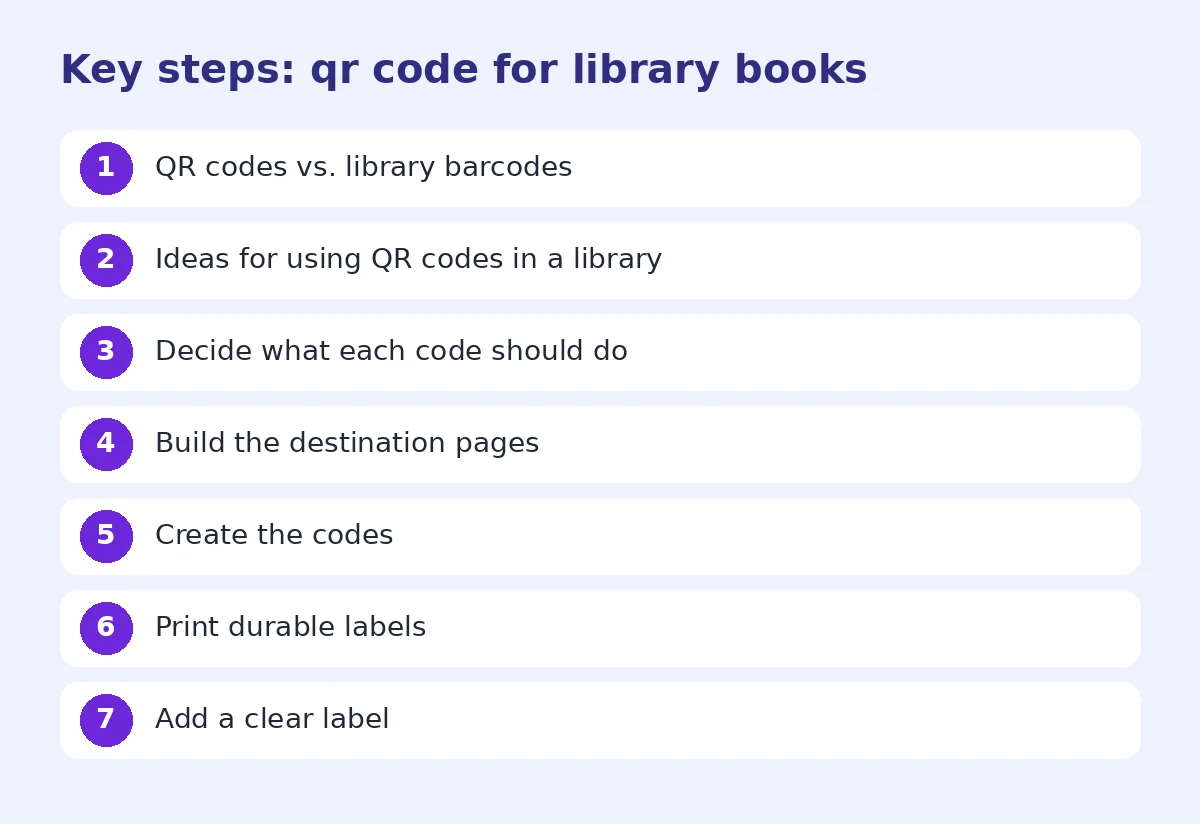
Step 1: Decide what each code should do
Don't put a code on everything. Choose places where patrons have a question, such as "what else is like this?" or "how do I book a room?", and answer that question with the code. Start with one project: a summer reading display, a "staff picks" shelf, or the new arrivals section.
Step 2: Build the destination pages
Most library catalogs have stable links for each title, list or search. Use those when you can. For reviews and reading lists, a simple page on the library website works. Keep pages short and mobile-friendly.
For student reviews in school libraries, a shared document or simple website where students write short reviews can be very motivating. Students love seeing their names next to a book.
Step 3: Create the codes
For a few displays, create codes one at a time. For many books, use a bulk QR code generator with a spreadsheet of titles and URLs. Use dynamic QR codes for displays that change, so you can update the destination without reprinting labels.
Step 4: Print durable labels
Books are handled constantly. Use:
- Clear protective label covers on books
- Laminated shelf talkers
- Acrylic sign holders for displays
Keep codes at least 2 cm wide on books and larger on posters. Avoid placing codes over curved spines, where they bend and become harder to scan. Our QR code size for printing guide has more detail.
Step 5: Add a clear label
Patrons need a reason to scan. Use labels like:
- "Scan for the audiobook"
- "Scan for student reviews"
- "Next in the series"
- "Book a study room"
School library ideas
- Book talks by students. Students record a one-minute review and the code links to it.
- Reading challenges. Codes at different shelves unlock clues or quiz questions.
- Research help. Codes in the nonfiction section link to research guides.
- Parent information. A code on newsletters for the library's online resources.
Our QR codes for teachers guide has more classroom ideas that work in the library too.
Public library ideas
- Local history. Codes on old photos or maps that link to the full story or an audio QR code narration.
- Community events. Codes on posters linking to event registration.
- Digital collections. Codes in physical sections pointing to ebooks and audiobooks.
- Job and skills help. Codes linking to resume guides, job boards and skills classes.
Privacy considerations
Libraries care deeply about patron privacy. When using QR codes:
- Link to your own catalog or trusted sites.
- Avoid tracking individual patrons.
- If you use dynamic codes for scan counts, use services that report totals, not personal data.
- Explain clearly where each code goes.
Patrons who are cautious can read our guide on how to check a QR code link before opening.
Track and improve
Count scans for each display over a month. If a "staff picks" code gets many scans and the new arrivals code gets few, you know where to put your energy. Ask staff what patrons say. Many libraries find QR displays are most popular with teenagers and parents.
Common mistakes
- Codes that link to the catalog homepage instead of the specific title.
- Labels that peel off after a few checkouts.
- Codes on curved spines.
- No call to action.
- Displays that change but codes that don't.
Keep codes up to date
Set a reminder every term or season to check that codes still work. Catalog systems change, and links sometimes break. A dynamic code makes fixing them easy: change the destination in your dashboard, and every printed label works again.
Start small and grow
You don't need a big budget to try this. Pick one display, create five to ten codes, and run it for a month. Ask patrons and staff what they think, and look at the scan counts. If it works, add a second display or a new section. Many libraries find that a single popular project, like student reviews on the young adult shelf, builds enough interest to expand QR codes across the building over a school year.
Training staff
Make sure front desk staff know what each code does and can help patrons who have trouble scanning. A short one-page guide at the desk is enough: where the codes are, what they open, and what to do if one doesn't work. Our article on how to scan a QR code on iPhone and Android is a helpful link to share with patrons.
A sample shelf talker
Here is a simple layout that works on a small card in front of a display: the title "Staff pick" at the top, one sentence about why the staff member loved the book, their first name, and a QR code with the label "Scan for three more like this". It takes five minutes to make and gives patrons a reason to pick up a second book.
FAQ
Can QR codes replace library barcodes?
No. Barcodes are for checkout systems; QR codes are for patrons to open web pages.
What should a library book QR code link to?
Reviews, audiobooks, author videos, the next book in a series, or a reading list.
How do I make QR codes for many books at once?
Use a bulk QR code generator with a spreadsheet of titles and links.
Are QR codes safe for library patrons?
Yes, when they link to trusted library pages. Explain where each code goes.
How big should a QR code be on a book?
At least 2 cm wide, on a flat surface like the back cover or inside the jacket.
Ready to create your own QR code?
Try qrfyy free