QR Code Sign-In Sheet: Replace Paper Check-Ins
Replace paper sign-in sheets with a QR code. Set up a QR check-in form for events, classes, offices and visitors in minutes. Free tools and tips inside.
By James Dom · ·
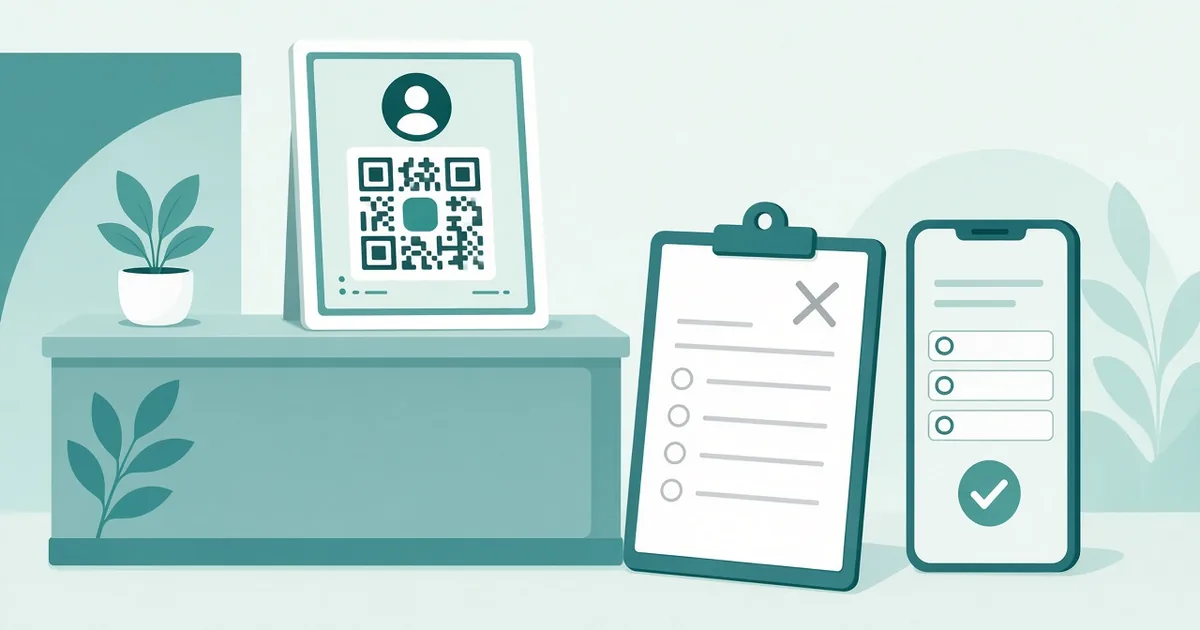
Paper sign-in sheets are everywhere: at office receptions, workshops, church events, clubs, classrooms and volunteer days. They are also messy. Handwriting is hard to read, the pen goes missing, people skip the email field, and someone has to type everything into a spreadsheet later. A QR code sign-in sheet fixes all of that. People scan the code with their phone, fill in a short form, and their details land in a clean spreadsheet instantly.
This guide shows you how to set one up with free tools, where to put the code, and how to handle privacy and people who don't have a smartphone.
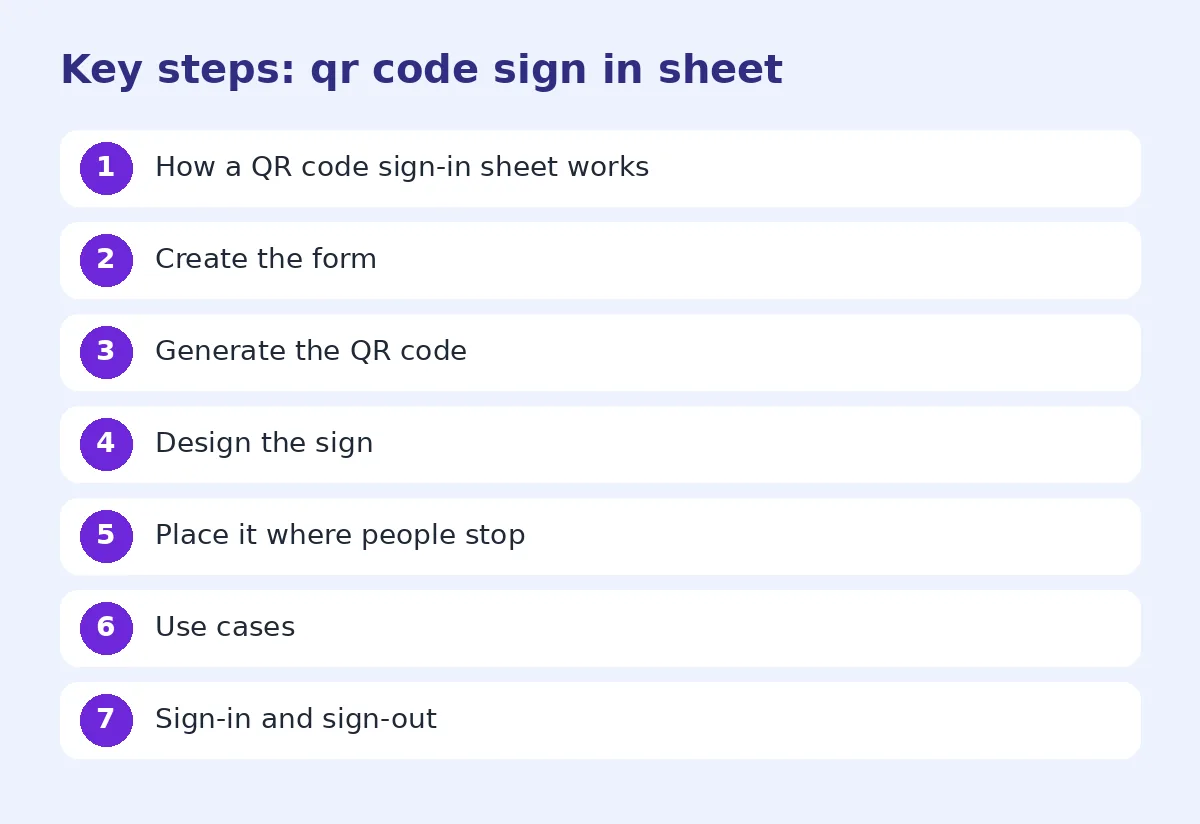
How a QR code sign-in sheet works
- You create an online form with the fields you need.
- You create a QR code that opens the form.
- You print the code on a sign at the entrance.
- Visitors scan, fill in the form and submit.
- Responses appear in a spreadsheet with a timestamp.
That's it. No app, no special scanner, no paid software required.
Step 1: Create the form
Google Forms is free and easy. Microsoft Forms and many other tools work too. Keep it short:
- Full name
- Email or phone (only if you will use it)
- Organization or team (for business visitors)
- Purpose of visit or session name
- Consent checkbox, if you'll contact them later
The date and time are recorded automatically, so you don't need to ask. If you collect responses in Google Sheets, you'll have a live attendance list.
Short forms get completed. Every extra question means fewer people finish.
Step 2: Generate the QR code
Copy the form's share link and paste it into a Google Form QR code generator. If you'll use the same sign for many events, create a dynamic QR code, so you can change the form behind it without printing a new sign.
Step 3: Design the sign
The sign should make it obvious what to do:
- A big title: "Please sign in"
- The QR code, at least 10 cm wide for an entrance sign
- A short instruction: "Scan with your phone camera"
- A fallback: "No phone? Ask at the desk"
Use a QR code frame with "Scan to sign in", and add your logo if you like with a QR code with logo. Our QR codes for flyers and posters guide covers layout.
Step 4: Place it where people stop
- On a stand at the entrance or reception desk
- On the table where people pick up name badges
- On each table at a workshop
- On the classroom door
- On the first slide of a presentation
Put it at eye level and in good light. If people queue, place a second code a few meters back so they can sign in while waiting.
Use cases
Office visitors: Name, company, who they're visiting, and arrival time. Add a safety notice or WiFi details on the confirmation page.
Events and workshops: Track attendance, collect emails for slides or certificates, and ask one quick feedback question.
Classes and training: Students sign in at the start. Teachers get an automatic attendance record. See our QR codes for teachers guide.
Volunteer shifts: Volunteers sign in and out, so you can count hours.
Churches and community groups: Welcome cards for new visitors. Our QR codes for churches and fundraisers article has more ideas.
Gyms and clubs: Class check-ins. See our QR code for gym guide.
Sign-in and sign-out
For visitor tracking or volunteer hours, you might need both. Two options:
- Two codes: one "Sign in" form and one "Sign out" form.
- One form with a question: "Are you arriving or leaving?"
Option 2 is simpler for visitors. Use a filter in your spreadsheet to match arrivals and departures.
Privacy and data protection
A sign-in sheet collects personal information, so handle it responsibly:
- Only ask for what you need.
- Tell people why you're collecting it and how long you'll keep it.
- Limit who can access the spreadsheet.
- Delete old records when you no longer need them.
- Don't show other people's names on screen, which is a big advantage over paper sheets where everyone can read the list.
People without smartphones
Always have a backup:
- A tablet at the desk with the form open
- A paper sheet that staff type in later
- A staff member who can sign people in
Show a confirmation
Set the form's confirmation message to something helpful: "Thanks for signing in! WiFi: GuestNet. Restrooms are on the left." You can also use a WiFi QR code generator for a separate WiFi sign.
Common mistakes
- Long forms with unnecessary questions.
- Codes that are too small or placed in poor light.
- Forms that require a Google login. Turn off "Restrict to users in your organization" for public events.
- No backup for visitors without phones.
- Forgetting to test the form before the event.
Test the code on two phones and submit a test response. Our test before printing checklist helps.
Use the data
The best part of a digital sign-in sheet is what you can do afterwards:
- Send a thank-you email or slides to all attendees.
- Issue attendance certificates.
- Count visitors per day or session.
- Compare event turnout over time.
Combine sign-in with name badges
For bigger events, you can link the sign-in form to badge printing. Attendees scan the code, enter their name and organization, and staff print a badge from the response sheet. Some events go further and put a small QR code on each badge that opens the person's contact card. Our QR code name badge guide explains how to set that up. It saves time at the entrance and helps people connect during the event.
Keep the sign looking fresh
Signs at an entrance get bumped, rained on and faded. Print on sturdy card or foam board, or slide the sign into a clear acrylic stand. Replace it when the edges curl or the code gets scratched. A tidy sign also looks more trustworthy, which matters when you are asking people to enter their details.
A ready-to-use form outline
If you want to start right now, copy this outline into your form tool: a title such as "Welcome! Please sign in", a short description of why you collect the details, then four questions: name, email, session or person visiting, and a consent checkbox. Set the confirmation message, turn on email notifications, and you are done.
FAQ
How do I make a QR code sign-in sheet?
Create an online form, generate a QR code for the form link, print the code on a sign and place it at the entrance.
Is a QR code sign-in sheet free?
Yes. Tools like Google Forms and a free QR code generator are enough.
Can I see sign-ins in real time?
Yes, if your form saves responses to a spreadsheet.
What if a visitor doesn't have a smartphone?
Offer a tablet, a paper backup or a staff member who can sign them in.
Can I reuse the same QR code for different events?
Yes, with a dynamic QR code you can change the form it opens.
Ready to create your own QR code?
Try qrfyy free